Installation
Supported versions
Section titled “Supported versions”- Microsoft Excel 2021 or later, Microsoft 365 Excel on Windows, or Excel on the web.
- Earlier Office versions are not supported from October 2025. Upgrade to perpetual Office 2021 (or later) or to a Microsoft 365 account.
- We are aware of some issues with Office on Mac and recommend that you use another platform.
Install from the Microsoft Store
Section titled “Install from the Microsoft Store”-
In Excel, open the Insert menu and click My Add-ins. A dialog with all your Office add-ins appears.
-
The first time, go to Store, search for Volue Insight API and click Add.
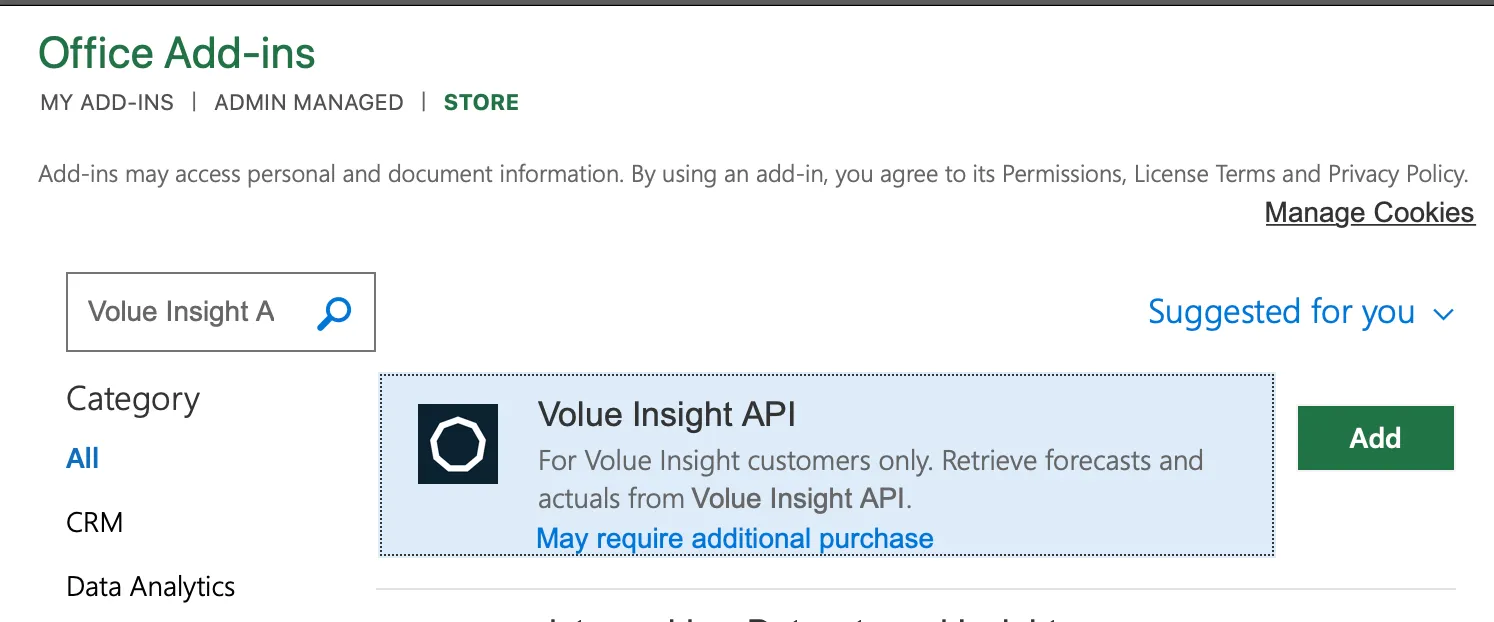
-
A new button is added to your Home menu. Click it to start the add-in.
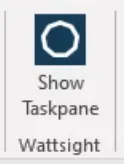
-
The add-in opens on the right side of your spreadsheet.
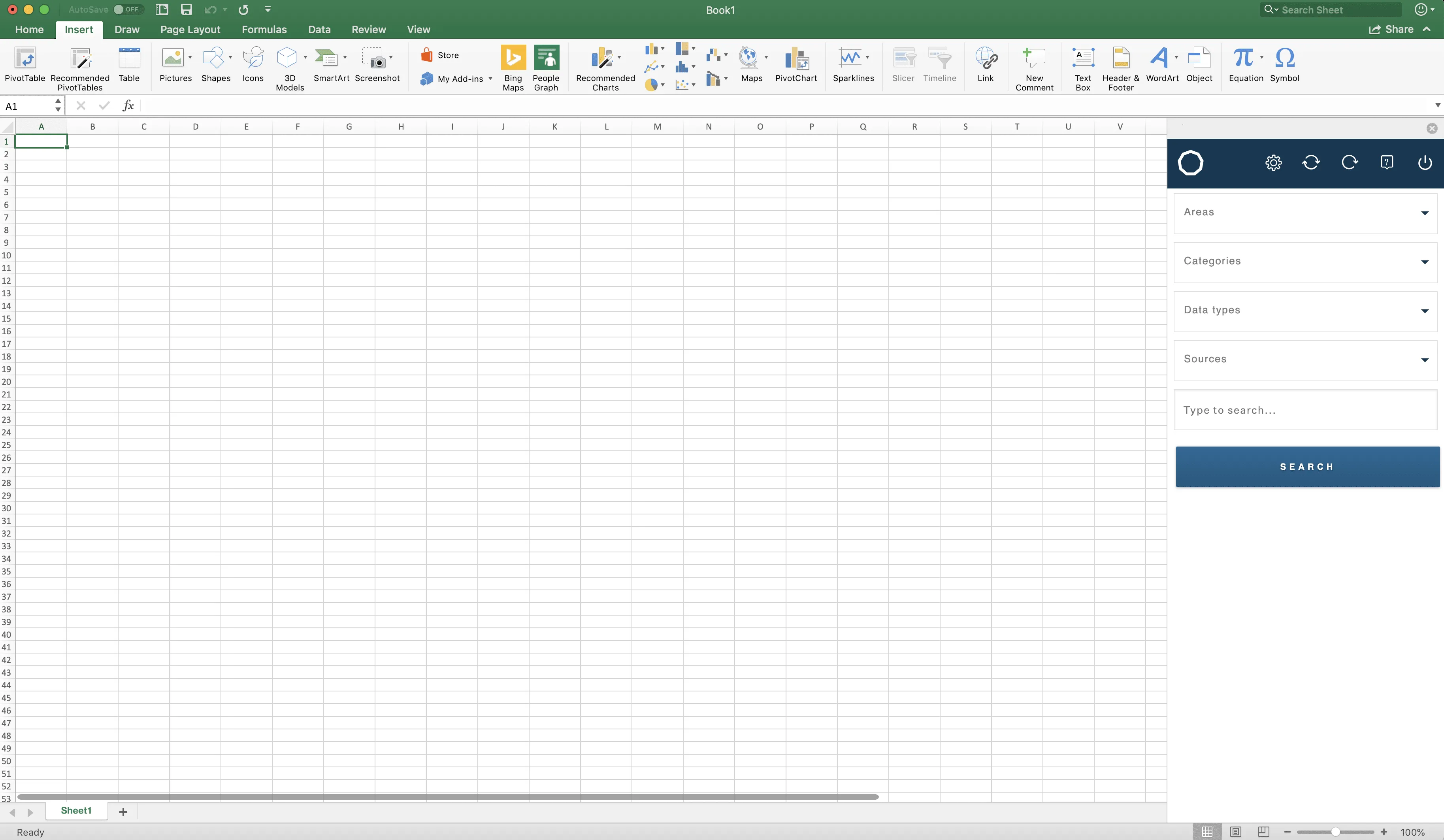
If the Microsoft Store is not available to you, use one of the other installation methods below.
Other installation methods
Section titled “Other installation methods”These two methods avoid the Microsoft Store and have worked for other clients. Both use the add-in manifest:
Download manifest (WAPIExcelPlugin.xml)
Office 365 centralized deployment
Section titled “Office 365 centralized deployment”Make the add-in available through your Office 365 managed add-ins. It can be configured for one user or for many, and appears on the Admin Managed tab of the Add-ins button.
Import the manifest into your company’s Office admin console. See Microsoft’s guide: Centralized Deployment of add-ins.
Sideload from a network share
Section titled “Sideload from a network share”- Place the manifest in a network share. This can be an existing shared folder that several users can access, or a shared folder on a personal computer for a single user.
- Define the shared folder as a trusted catalog.
Detailed instructions (we recommend the video from the step where you already have the manifest file): Create a network shared folder catalog for task pane and content add-ins.