Troubleshooting
Change your Microsoft Office update channel
Section titled “Change your Microsoft Office update channel”-
Close all Office applications.
-
Create a file called
Monthly_Channel.batwith the following content:Terminal window setlocalreg query HKEY_LOCAL_MACHINE\SOFTWARE\Microsoft\Office\ClickToRun\Configuration\ /v CDNBaseUrl if %errorlevel%==0 (goto SwitchChannel) else (goto End):SwitchChannelreg add HKEY_LOCAL_MACHINE\SOFTWARE\Microsoft\Office\ClickToRun\Configuration /v CDNBaseUrl /t REG_SZ /d "https://officecdn.microsoft.com/pr/492350f6-3a01-4f97-b9c0-c7c6ddf67d60" /freg delete HKEY_LOCAL_MACHINE\SOFTWARE\Microsoft\Office\ClickToRun\Configuration /v UpdateUrl /freg delete HKEY_LOCAL_MACHINE\SOFTWARE\Microsoft\Office\ClickToRun\Configuration /v UpdateToVersion /freg delete HKEY_LOCAL_MACHINE\SOFTWARE\Microsoft\Office\ClickToRun\Updates /v UpdateToVersion /freg delete HKEY_LOCAL_MACHINE\SOFTWARE\Policies\Microsoft\Office\16.0\Common\OfficeUpdate\ /f:EndEndlocal -
Right-click
Monthly_Channel.batand choose Run as administrator.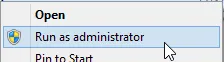
-
Open Excel and go to Account to check that you are on the Monthly Channel. It can take some time before it is available.

-
Run the Office update by clicking Update Options > Update Now.
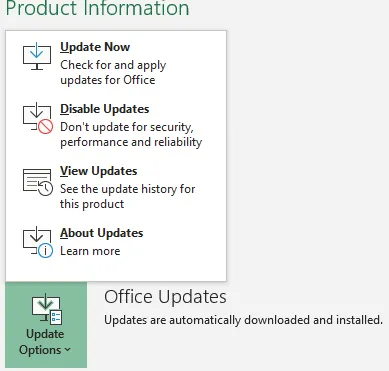
See also Microsoft’s guide: Switch channel for Office 365.
IE11 local storage access denied
Section titled “IE11 local storage access denied”This happens when Office still uses Internet Explorer 11 and the add-in opens with a blank screen.
You can debug the issue with the F12 developer tools. See Debug add-ins using F12 developer tools on Windows 10.
If you see An internal error has occurred in the Microsoft Internet Extension, try the following in order:
-
Close Internet Explorer and Excel, and run this command:
Terminal window icacls %userprofile%\Appdata\LocalLow /t /setintegritylevel (OI)(CI)L -
If that does not help, open
regeditand delete these two registry keys:Computer\HKEY_CURRENT_USER\Software\Microsoft\Windows\CurrentVersion\Internet Settings\5.0\Cache\Extensible CacheComputer\HKEY_CURRENT_USER\Software\Microsoft\Windows\CurrentVersion\Internet Settings\5.0\LowCache\Extensible Cache -
If it still does not work, delete the entire Internet Explorer key from the registry:
Computer\HKEY_CURRENT_USER\Software\Microsoft\Internet Explorer
More information: IE 11 Office.js access is denied trying to use localStorage.
Browser version is not supported
Section titled “Browser version is not supported”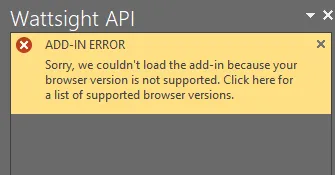
The add-in runs in either Internet Explorer or Edge, depending on your Office and Windows versions. If you see a warning that the browser is not supported, you may need to install Internet Explorer or Edge. Check Browsers used by Office Add-ins to see which browser your setup uses.
On Windows 10, you can install Internet Explorer from Windows Features > Turn Windows features on or off.
The add-in breaks after a new release
Section titled “The add-in breaks after a new release”After a new release, cached static files (JavaScript, HTML and CSS) are sometimes not reloaded. The example below shows the add-in with a missing CSS file:
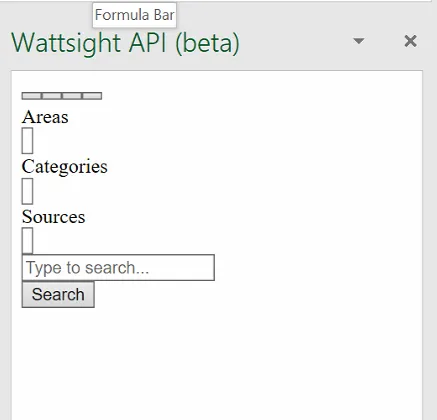
Clear the cache of the browser the add-in uses (see Browser version is not supported). If that does not work, run this command in a Command Prompt:
del /s /f /q %LOCALAPPDATA%\Packages\Microsoft.Win32WebViewHost_cw5n1h2txyewy\AC\#!123\INetCache\More information: Changes to static files do not take effect.
Still stuck?
Section titled “Still stuck?”Contact support.insight@volue.com.