Installing the .NET API
The PowerTSM .NET API is distributed as NuGet packages. This page describes how to make these packages available on a development machine and reference them from a project, either with Visual Studio or with the .NET CLI.
Prerequisites
Section titled “Prerequisites”-
The NuGet packages must be available at a known location on the development machine. For the remainder of this guide, their location is assumed to be:
C:\HAKOM\ -
The .NET 8 SDK must be installed. For more information, refer to the Microsoft documentation.
-
A valid
HAKOM.Licensefile must be available.
Installation
Section titled “Installation”Using Visual Studio (2026)
Section titled “Using Visual Studio (2026)”Create a New Package Source
Section titled “Create a New Package Source”-
Open
Tools → NuGet Package Manager → Package Manager Settings.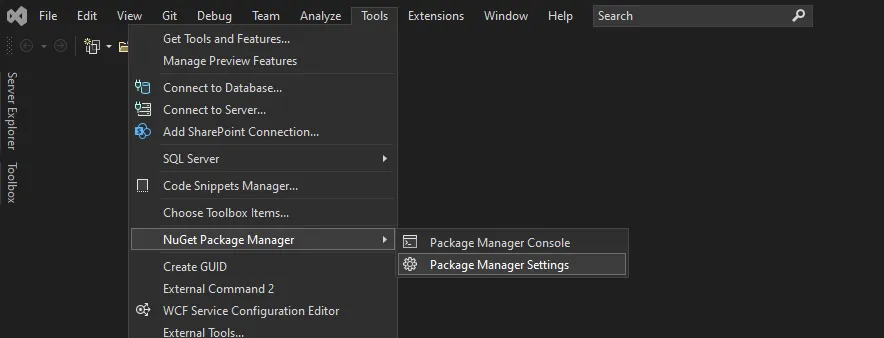
-
Select
Package Sourcesand add a new source.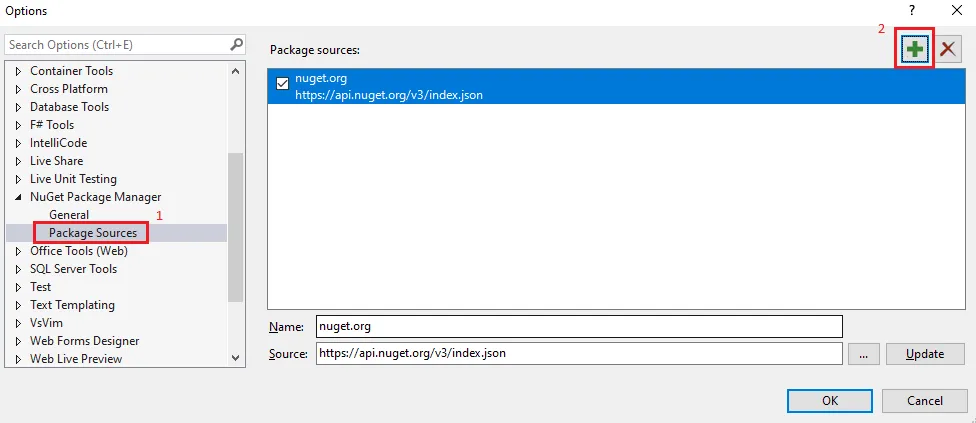
-
Enter the location of the NuGet Package under
Sourceand pick a name (HAKOMin this example), then clickUpdate: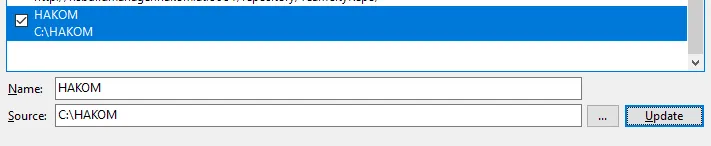
Reference the Package in the Project
Section titled “Reference the Package in the Project”-
Create a new project (this example uses the new command-line project template).
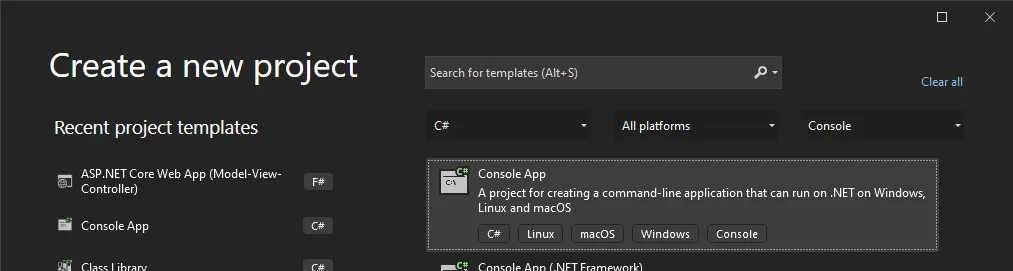
-
Right-click on the project in the
Solution Explorerand selectManage NuGet Packages.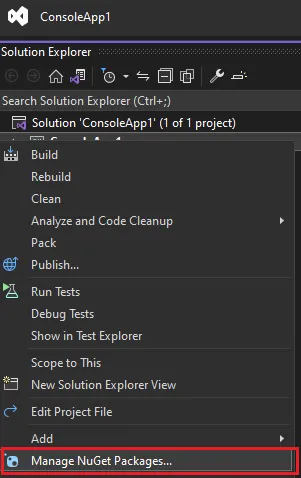
-
On the top-right, under
Package source, select the previously created source (HAKOM), then select the package and clickInstall.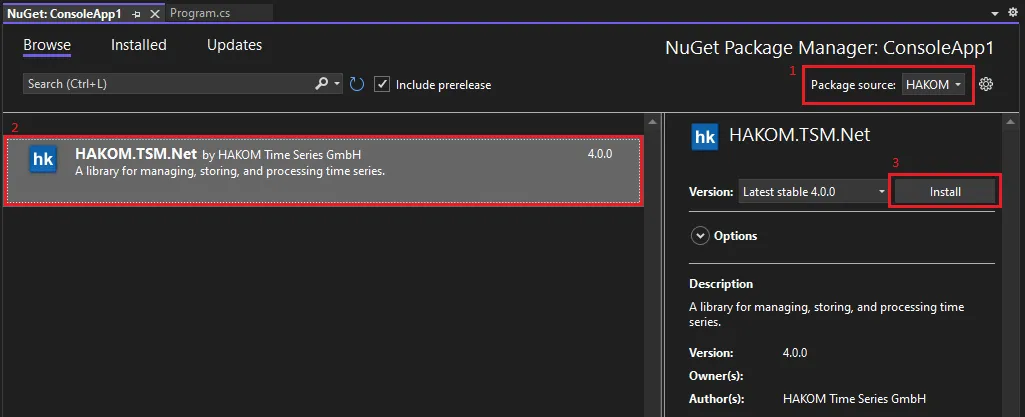
Add Required Files
Section titled “Add Required Files”-
Right click on the project and select
Add → Existing Item....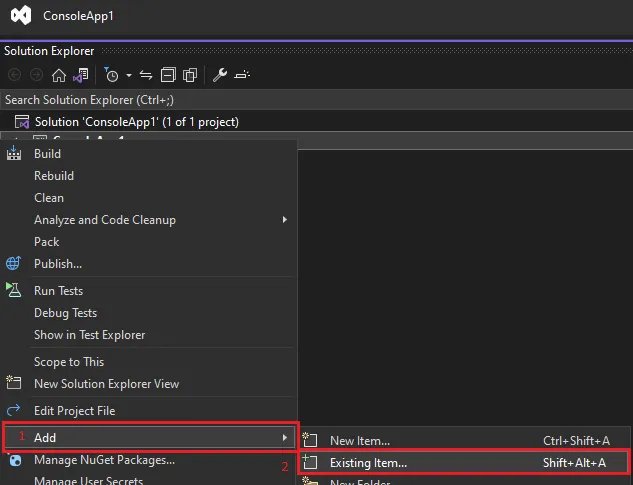
-
Select the
HAKOM.Licensefile in the opened file chooser window. -
After pressing
Add, select the file in theSolution Explorer, then underPropertieschangeCopy to Output DirectorytoCopy if newer.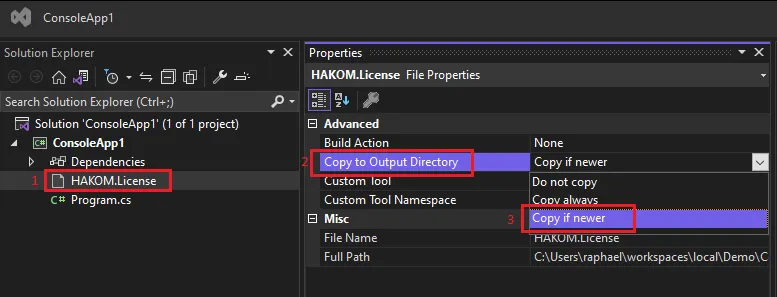
Using the .NET CLI
Section titled “Using the .NET CLI”Create a New Package Source
Section titled “Create a New Package Source”-
Open a command line window and navigate to the directory you would like to start from (in our case, this will be
C:\Getting Started). -
Create a new file
Nuget.Configwith the following contents:<?xml version="1.0" encoding="utf-8"?><configuration><packageSources><add key="HAKOM" value="C:\HAKOM" protocolVersion="3" /></packageSources></configuration>
Reference the Package in Your Project
Section titled “Reference the Package in Your Project”-
Create a new console project:
dotnet new console -
Add a reference to the
HAKOM.TSM.Netpackage:dotnet add package HAKOM.TSM.Net --version 4.13.0
Add Required Files
Section titled “Add Required Files”Copy your HAKOM.License file to the project directory, then add the following lines into the .csproj file:
<ItemGroup> <None Update="HAKOM.License"> <CopyToOutputDirectory>PreserveNewest</CopyToOutputDirectory> </None></ItemGroup>Verify the Installation
Section titled “Verify the Installation”Edit Program.cs and add the following (example) code.
List all time series of a repository
Section titled “ List all time series of a repository”using HAKOM.TSM.Net.Api;using HAKOM.Configuration.Core.Net.Api.Extensions;using Microsoft.Extensions.Configuration;
Dictionary<string, string> configuration = new(){ ["Persistence:Repositories:Repository:MyRepository:Name"] = "MyRepository", ["Persistence:Repositories:Repository:MyRepository:Provider:Type"] = "<insert provider here>", ["Persistence:Repositories:Repository:MyRepository:Provider:Settings:Setting:Data Source"] = "<insert data source here>", ["Persistence:Repositories:Repository:MyRepository:Provider:Settings:Setting:Password"] = "<insert password here>"};
var tsm = ITsm.Create((container) =>{ container.Configure(configurationBuilder => { configurationBuilder.AddInMemoryCollection(configuration); });}, true);
var repo = await tsm.Repositories.Load("MyRepository");
var timeSeriesStore = await repo.GetTimeSeriesStore();
var searchParameters = timeSeriesStore.SearchParameters.Create(name: "*");
await foreach(var timeSeries in timeSeriesStore.Find(searchParameters)){ Console.WriteLine($"Found time series: {timeSeries.Name}");}Build and run the application. When using the .NET CLI, run:
dotnet runIt should list all the time series in the configured database.